Cellular Tower - Signal Finder
Go DreamsMaps & Navigation
4.4345.00 Reviews
- Version
- 2.2.0
- Installs
- 500.00K
- Age Rating
- Everyone
Screenshots
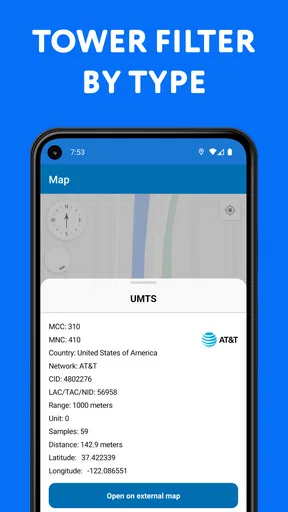
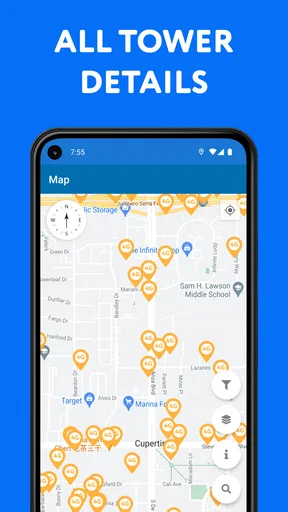
Our Review of Cellular Tower - Signal Finder
 Analysis by Appyee
I approached Cellular Tower - Signal Finder as a practical Maps & Navigation tool rather than a magic fix for poor reception. Its purpose is to help me understand cellular coverage by showing signal-strength information for 3G, 4G, 5G, and LTE connections. That distinction matters: an app can help identify what my phone is receiving, but it cannot physically improve a carrier’s network or turn a weak area into a strong one.
In everyday use, I found the idea most useful when I wanted context around an unreliable connection. A dropped call, slow upload, or stalled map can be caused by distance from a tower, congestion, walls, terrain, or a temporary network problem. A signal finder gives me another piece of the puzzle instead of leaving me to guess. The app is free to install, aimed at everyone, and comes from Go Dreams, so it is accessible to casual users as well as people who regularly troubleshoot mobile coverage.
How Cellular Tower - Signal Finder fits into real-world coverage checks
The current version is 2.2.0, and the app has been available since November 28, 2023. Its store summary focuses on cellular network information and signal strength, while the short description presents it simply as a cellular tower tool. I think that positioning is fair. This is not a replacement for a carrier’s official coverage map, a speed-test service, or a dedicated network engineering instrument. It sits between those options: more informative than relying on the signal bars alone, but less comprehensive than professional surveying equipment.
That middle ground is where it makes sense. Signal bars are convenient, yet they are not a universal measuring scale across phones and networks. Two phones can show similar bars while behaving differently, and a strong radio signal does not guarantee fast data if the local cell is busy. Looking at the connection type and signal information together can help me separate “the phone can barely reach the network” from “the phone has a reasonable connection but the network is performing poorly.”
I would use it before making a bigger decision, such as moving a router, changing where I work in a house, or considering a different carrier. I would not treat one reading from one corner of one room as a final verdict. Buildings, vehicles, weather, terrain, and network load can all affect the result. The most useful habit is to compare several locations and times, then look for a pattern.
A practical routine for checking a weak connection
My preferred workflow starts with a baseline. I open the app where the problem normally happens and note the displayed network generation and signal information. Then I repeat the check near a window, on another floor, outdoors, or in the place where I might actually use the phone. I keep the phone still for a short period rather than walking around continuously, because moving between cells can make the readings harder to interpret.
The non-obvious benefit of this routine is that it turns a vague complaint into a location comparison. If the signal improves near a particular wall or window, I have a useful clue for positioning a hotspot or phone. If the reading looks reasonable everywhere but a video call still struggles, the problem may be congestion, latency, or the service itself rather than simple coverage. That prevents me from blaming the wrong part of the setup.
For a household, I would take readings in the rooms where people actually need service instead of checking only the front door. A bedroom, home office, garage, and garden can have very different results. For travel, I would use it as a quick diagnostic after arriving, especially if navigation works but calls or uploads do not. It can also help me document a recurring dead spot before contacting a carrier, although I would still include the time, location, and practical symptom in any complaint.
What the app is good at, and where expectations need restraint
The strongest part of this app is its focus. It is built around cellular tower and signal information, so I do not have to begin with a broad collection of unrelated network tools. That makes it approachable for someone who wants to answer a simple question: “Is my phone receiving a weak cellular signal here, and what kind of connection is it using?” The Everyone content rating also makes it suitable for a general audience, including family members who may not be comfortable with technical network terminology.
Still, I would not call it a signal booster in the physical sense. The phrase can easily create the wrong expectation. No software-only tool can install a nearby tower, increase a carrier’s transmission power, or guarantee faster service. If the problem is an overloaded cell or a carrier outage, better information may explain the issue without solving it. For genuine indoor coverage problems, a carrier-approved femtocell, a properly installed booster, Wi-Fi calling, or a different provider may be more effective, depending on the situation.
This is also why I would avoid making a carrier decision from a single reading. A network that looks excellent at midday may behave differently during a busy evening. Likewise, a strong 5G label does not automatically mean a better experience than a stable 4G connection in that exact place. I see the app as a diagnostic companion: useful for forming a better question, not a substitute for testing the service over the times and tasks that matter to me.
How it compares with familiar alternatives
The usual alternative is the phone’s own status bar. That is faster, but it compresses a complicated situation into a few bars and a network label. Cellular Tower - Signal Finder is more useful when I need to investigate rather than glance. It gives the coverage question more attention and encourages me to compare locations instead of trusting a single icon.
A carrier coverage map answers a different question. It is helpful before signing up or checking broad regional availability, but it usually cannot tell me what is happening inside my apartment, office, or car at this moment. The app is better for local, on-the-ground checks. The carrier map is better for a large-area overview. I would use both when comparing providers.
Speed-test applications are also complementary rather than direct competitors. A speed test tells me how quickly data moved during a particular test, while this app helps me inspect the cellular connection behind the experience. Running both can reveal an important trade-off: a strong signal with disappointing speed may point toward congestion or network capacity, while a weak signal with inconsistent performance suggests a coverage issue. Neither result should be read in isolation.
Professional network tools can go much deeper, but they are usually less friendly and may require a clearer understanding of radio measurements. For most people trying to decide where to stand, whether a room is suitable for calls, or whether a carrier complaint has a plausible coverage explanation, this app is the less intimidating starting point.
What has changed for current users
For existing users, version 2.2.0 is the current point of reference. I would treat the version number as evidence of an actively maintained product state, but not as proof of a particular feature unless the app itself shows that feature. The important practical question is whether the current build presents the signal and tower information clearly on a supported phone, especially when moving between older and newer network generations.
The minimum operating-system requirement is Android 8.0. That keeps the app available to many older devices, which is particularly relevant here because people often use an older phone as a hotspot, backup handset, or coverage-testing device. At the same time, hardware and carrier support still matter. An older handset may not detect every newer network capability, so the app’s display should be interpreted in the context of what the phone itself can access.
I also appreciate that the app has reached over 500 thousand installs and holds a 4.4 average from around 22 thousand ratings. Those figures suggest that it has found a substantial audience and that many users consider it useful. They do not remove the need for personal testing, because signal tools depend heavily on the phone model, carrier, location, and local conditions. A positive overall impression is encouraging, but my own use should remain the final test.
The app is free, although in-app purchases range from $2.99 to $39.99 per item. I would begin with the free experience and decide whether any paid option provides value for my particular workflow. Someone checking a dead zone once probably has little reason to spend more. A person who repeatedly compares locations or relies on detailed network information may judge the upgrade differently, but I would want to understand exactly what is unlocked before paying.
Small details that make the results more useful
One useful habit is to record the practical experience beside the app’s reading. I might write “voice call breaks up,” “upload pauses,” or “maps load normally” next to the location and network type. This creates a personal reference that is more valuable than a number remembered without context. Over several checks, I can see whether a certain connection type consistently matches the problem or whether the issue appears only at busy times.
A second tip is to test a phone in the position where it will actually be used. Holding it in my hand outdoors may produce a different result from leaving it on a desk beside a window. If I am evaluating a hotspot, I check the place where the hotspot will remain, then test the connected device separately. That avoids confusing good cellular reception at the phone with poor Wi-Fi placement inside the room.
A third trade-off involves movement. Driving around can reveal that coverage changes along a route, but it is a poor way to judge a single location because the phone may switch towers while I am moving. For a home or office decision, stationary comparisons are cleaner. For travel planning, repeated checks at stops are safer and easier to interpret than trying to watch readings while in motion.
Finally, I would compare the app’s information with an actual task. A strong reading during an idle moment is not enough if my goal is a stable video meeting. I test the activity I care about, then use the signal information to explain the result. This is where the app becomes more than a display: it helps connect radio conditions with the way the phone behaves.
Who should use it, and who should choose something else
I recommend it to people who regularly work from changing locations, live in an area with uneven reception, use a phone as a hotspot, or want evidence before speaking with a carrier. It is also a sensible tool for families helping someone with recurring call problems, because a simple location comparison can reveal that the issue is limited to one room rather than the entire service.
It is less suitable for someone expecting an instant boost in bars or faster data. If the main need is to compare nationwide coverage before buying a plan, a carrier map and independent coverage reports may be more appropriate. If the main need is to measure download speed, latency, or upload performance, a dedicated speed-test tool is the better first choice. If the issue is an outage, neither a tower finder nor a speed test can repair the network.
I would also be cautious about using it as the sole basis for technical decisions. A professional installer or network specialist may need more detailed information than a general mobile app provides. Likewise, users who dislike interpreting changing readings may find the results more confusing than helpful. The app rewards a little patience: check, compare, relate the result to a real task, and avoid treating one moment as universal truth.
What I would watch in future use
My main expectation for the product’s continued evolution is clarity. As phones move between 4G, 5G, and other available connections, the most valuable improvement would be making it easy for ordinary users to understand what changed and why it matters. Clear presentation is more useful than displaying technical information without context.
I would also watch how well the current build behaves across older Android devices and newer network hardware. The Android 8.0 minimum is friendly to older phones, but the experience can still vary with device sensors, modem support, and carrier configuration. A reading should always be understood as the phone’s view of the network, not an absolute measurement of every nearby tower.
Privacy and battery habits are worth considering in any location-aware network tool. I use it deliberately rather than leaving it open all day, and I close the session when I have finished comparing places. That keeps the app in its proper role as an occasional diagnostic instrument instead of turning a simple check into a constant background routine.
After using it as a focused coverage checker, my opinion is positive but measured. Its real value is helping me make better decisions about where and when cellular service works, not promising to manufacture reception. The free entry point, broad device compatibility, and straightforward purpose make it easy to try. The paid options mean I would inspect the available upgrade before spending, but casual users can start without committing money.
For me, Cellular Tower - Signal Finder earns a place on an Android phone when coverage is inconsistent and I need more information than the status bar provides. I would pair it with real-world testing, a speed check, and the carrier’s own coverage information rather than relying on it alone. Used that way, it is a practical tool for finding patterns, choosing better locations, and deciding whether a problem is likely to be coverage, congestion, device-related, or something that requires a different solution.
Verdict
Strengths of Cellular Tower - Signal Finder
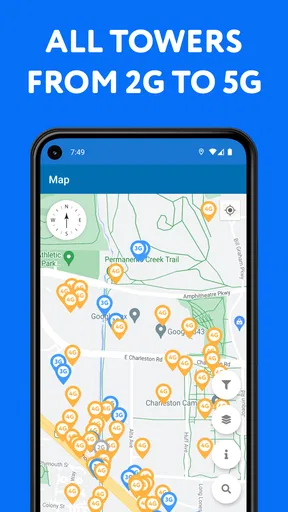
- Shows nearby cell towers and signal strength on an interactive map.
- Helps identify areas with stronger reception before changing location.
- Useful for troubleshooting weak calls, slow data, or dropped connections.
- Displays network information that can assist with coverage comparisons.
- Simple interface makes basic signal checks quick and easy.
Limitations of Cellular Tower - Signal Finder
- Tower locations may be estimated and are not always completely accurate.
- Some features may depend on crowdsourced or outdated coverage data.
- GPS and continuous signal monitoring can noticeably drain the battery.
- Results can vary between carriers, phones, and supported network bands.
- Advanced information may be difficult for users without technical knowledge.
Other Releases by Go Dreams
View All
Bunker: Zombie Survival Games
Adventure4.3

Elemental Monsters: Merge
Strategy4.8

Drone App: Forecast for UAV
Weather4.3
Similar Picks in This Category
View All
Uber - Request a ride
Uber Technologies, Inc.4.7


inDrive. Rides with fair fares
® SUOL INNOVATIONS LTD4.8

Yandex Go: Taxi Food Delivery
Mikromobilnost LLC Belgrade4.8

Bolt: Request a Ride
Bolt Technology4.8

Rapido: Bike-Taxi, Auto & Cabs
Rapido Bike Taxi4.8
Frequently Asked Questions
What is Cellular Tower - Signal Finder used for?
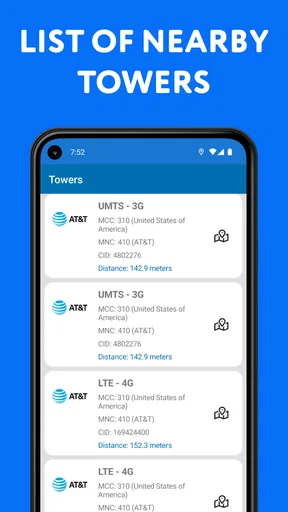
Cellular Tower - Signal Finder is designed to help users inspect nearby mobile network infrastructure and understand cellular signal conditions. Depending on the device and available permissions, it may display information such as nearby tower locations, network type, signal strength, carrier details, and connection data. It is useful for troubleshooting weak reception, comparing locations, or learning more about how your phone connects to mobile networks.
Does Cellular Tower - Signal Finder show the exact location of every cell tower?
The app can display tower information and estimated locations, but the accuracy and completeness of the results may vary. Data availability depends on your carrier, region, device compatibility, crowdsourced databases, and the permissions granted to the app. Some towers may be missing, grouped together, or shown with approximate coordinates, so the map should be treated as a helpful reference rather than an official engineering survey.
Does the app require location permission or an internet connection?
Cellular Tower - Signal Finder may request location permission because Android and iOS restrict access to cellular and network-related information without it. Location services can also help associate signal readings with places on the map. An internet connection is generally useful for loading maps, updating tower databases, or retrieving network information, although certain signal readings may still be available offline depending on your phone and the app’s supported features.
Can Cellular Tower - Signal Finder improve my mobile signal or unlock better service?
No. The app is primarily an analysis and information tool, so it cannot physically increase signal strength, repair a carrier outage, change your subscription, or force your phone to connect to a particular tower. It can help you identify areas with better reception and understand connection problems. Any improvement must come from changing location, adjusting network settings, using approved equipment, or contacting your mobile carrier.
Is Cellular Tower - Signal Finder safe to use, and what privacy issues should I consider?
The app should be downloaded from a trusted official store and reviewed carefully for its requested permissions, privacy policy, and developer information. Cellular diagnostics may involve location, network, device, or usage data, depending on the platform and features enabled. Before using it, grant only permissions that are necessary, avoid sharing sensitive screenshots publicly, and check whether readings or location history can be uploaded or stored by the service.
